Plusmark

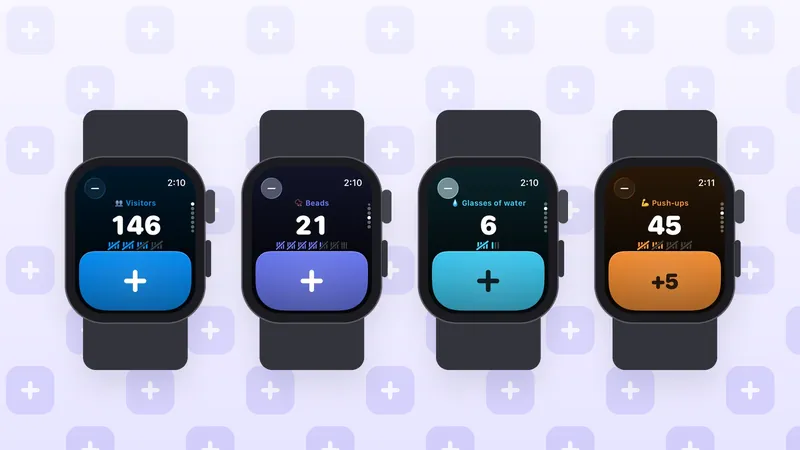
To count on Apple Watch, open Plusmark on the watch, swipe up or down (or turn the Digital Crown) to the counter you want, and tap the big pad. Double Tap adds one too, so you can count without touching the screen. The minus button at the top takes one off. That's the whole thing, and every tap shows up on your iPhone and iPad.
This guide covers what you need, how to count, how to fix a mistake, and how to put a counter on your watch face so it's one tap away.
The short version
- Pick a counter: swipe up or down, or turn the Digital Crown. The Crown moves between counters; it doesn't count.
- Count: tap the pad, or Double Tap.
- Take one off: the minus button at the top.
- On the watch face: add a Plusmark complication. The rectangular one has a + key.
What you need
- An Apple Watch with watchOS 26 or later.
- Plusmark on your iPhone. The watch app comes with the iPhone app; it isn't a standalone watch app.
- iCloud with the same Apple Account on your iPhone and watch. Your counters reach the watch through your iCloud, so the first ones can take a moment to arrive.
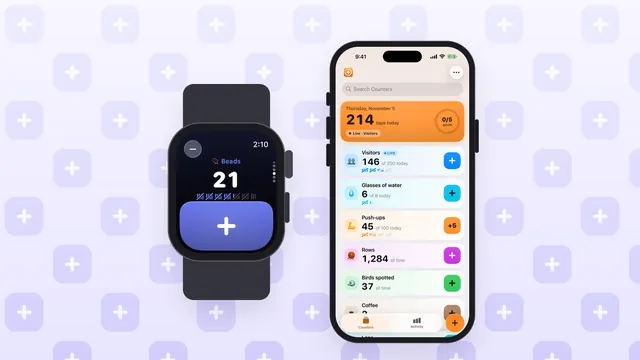
You make and edit counters on the iPhone or iPad: the name, the goal, the step, when it resets. Once a counter is on the watch you can count there, and the taps sync back to your other devices.
Step 1: Pick a counter
Your counters sit on the watch like pages. Swipe up or down, or turn the Digital Crown, to move from one to the next. If you count a few things in a session, such as sets of different exercises or several species on a walk, you'll swipe between them as you go.
One thing that surprises people: the Digital Crown never counts. Turning it only moves between counters, so a bump against your sleeve won't add anything.
Step 2: Count
There are two ways to add to the counter on screen:
- Tap the pad. It's big and right under your thumb, so you don't need to aim.
- Double Tap. Tap your index finger and thumb together twice, as Apple describes it. It's ideal when your other hand is full, holding a lead, a rosary, a dumbbell or a cup.
Each tap adds the counter's step, so a counter set to add 5 adds 5 from the watch too. You feel a haptic on every count and a success tap when you reach the goal, and goals show their tally marks on the watch just like on the iPhone.
Double Tap works on supported models. If it doesn't respond, Apple lists a few times it's unavailable: when Low Power Mode is on, when Sleep Focus is on, when your wrist is down and the display is off, when the watch is locked, or when accessibility features that use hand gestures are turned on. You can check the setting in the Settings app on the watch, under Gestures, then Double Tap.
Fix a mistake
Counted one too many? Tap the minus button at the top of the counter to take one off. Counts never go below zero.
The watch keeps things simple on purpose: it counts, subtracts and shows tally marks for goals. History, Undo and editing are on the iPhone and iPad. If a count is badly off, open the counter on your iPhone, check History to see when each tap came in, and use Set Count in Edit Counter to type the right number.
Put a counter on your watch face
A complication keeps a counter on the watch face, so you don't even have to open the app. Plusmark has four:
- Rectangular: has a + key that counts.
- Circular: shows the count and opens the counter.
- Corner and inline.
Each one shows the counter you pick. To add one, follow Apple's steps:
- With the watch face showing, touch and hold the display, then tap Edit.
- Swipe left all the way to the end. If the face offers complications, they're on the last screen.
- Tap a complication to select it, then turn the Digital Crown to choose Plusmark.
- Press the Digital Crown to save your changes, then tap the face to switch to it.
Watch faces differ in which complication sizes they offer, so if you want the + key, pick a face with a rectangular slot.
The Smart Stack and the Live Activity
When a counter's Live Activity is running on your iPhone, it also shows in the watch's Smart Stack, and Double Tap adds one from there. Apple puts Live Activities at the top of the Smart Stack: open it by turning the Digital Crown up or swiping up from the bottom of the watch face, or tap the Live Activity at the top of the screen. By default the Smart Stack stays open while a Live Activity runs, even with your wrist down.
This is handy when the phone is in your pocket and you're counting the same thing for a while. Start the Live Activity once on the iPhone and count from either device. More on that in keep a counter on your Lock Screen with a Live Activity.
Tips for counting on your wrist
- Prayer beads and dhikr: Double Tap lets you count with your eyes closed, and the watch buzzes on every count. See how to count dhikr.
- Reps: set the counter to add 5 or 10 a tap and tap once per set. See how to count reps.
- Laps: tap or Double Tap as you pass the line, then look at each lap's time in History on the iPhone. See counting running laps. For the pool, count lengths from the poolside: Plusmark counts taps on the screen, so it isn't made for counting in the water.
- One counter you use all day? Put the rectangular complication on your main watch face and skip opening the app.
The Plusmark on Apple Watch page has the watch features in one place, and the FAQ covers iCloud sync, goals and History.
Count it with Plusmark
Plusmark is the tally counter for iPhone, iPad, iPhone Duo and Apple Watch. Name a counter, tap the big + pad, and every tap is saved with its time, with goals, widgets and Siri.