Plusmark

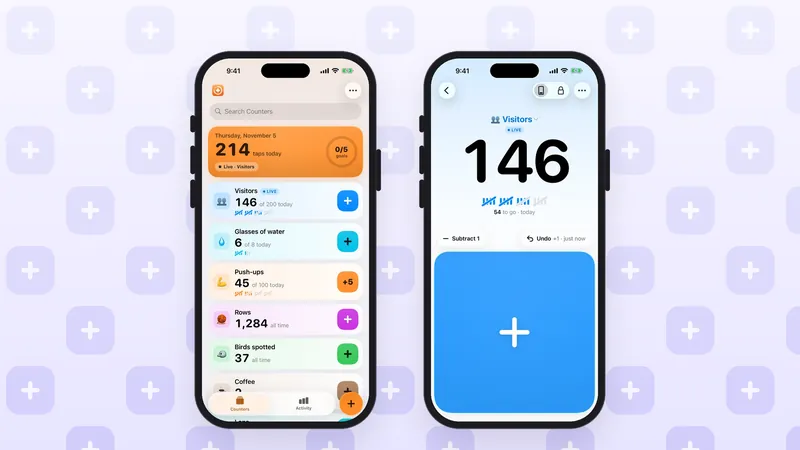
The quickest counter on an iPhone is one you don't have to open. Add Plusmark's Counter widget to your Home Screen (small or medium) or your Lock Screen (rectangular), and its + key counts with one tap. For several things at once, the Counters widget puts 3 or 6 counters on the Home Screen, each with its own key.
This guide shows which widget does what, then walks through Apple's steps for adding one to the Home Screen and the Lock Screen.
The short version
- Home Screen, one counter: the Counter widget, small or medium. Both have a + key.
- Home Screen, several counters: the Counters widget, medium (3 counters) or large (6), each with a + key.
- Lock Screen: the rectangular Counter widget has a + key. The circular and inline ones open the counter.
- To add one: touch and hold the Home Screen, tap Edit, then Add Widget. On the Lock Screen, touch and hold, tap Customize, then Add Widgets.
Which widget to pick
Plusmark has two widgets. Counter shows one counter. Counters shows a few side by side. Here's every size, and whether it counts or opens the app:
- Counter, small (Home Screen): one counter with a + key that counts.
- Counter, medium (Home Screen): one counter with a + key that counts. With Left-Handed turned on in Settings, the medium widget is mirrored.
- Counters, medium (Home Screen): 3 counters, each with its own + key.
- Counters, large (Home Screen): 6 counters, each with its own + key.
- Counter, rectangular (Lock Screen): one counter with a + key that counts.
- Counter, circular and inline (Lock Screen): small and quiet. Tapping one opens the counter in Plusmark.
A simple rule: if you count one thing all day, like glasses of water or coffees, the small Counter widget is enough. If you count several things in turn, like birds by species or stock by item, the large Counters widget puts six keys under your thumb.
Add a counter to your Home Screen
These are Apple's steps for iOS 26:
- Go to the Home Screen and find the page where you want the widget.
- Touch and hold the background until the apps begin to jiggle, tap Edit at the top of the screen, then tap Add Widget.
- Scroll or search to find Plusmark, tap it, then swipe through the sizes: Counter in small and medium, and Counters in medium and large.
- When you see the one you want, tap Add Widget.
- While the apps are still jiggling, drag the widget where you want it, then tap Done.
Put it on your first Home Screen page if you count often. A widget two swipes away gets forgotten by lunchtime.
Add a counter to your Lock Screen
The Lock Screen is the place for something you count with your phone in your hand anyway. Apple's steps:
- Touch and hold the Lock Screen until the Customize button appears, then tap Customize.
- Tap your existing widgets, or tap Add Widgets.
- Find Plusmark, then tap or drag the widget you want. Pick the rectangular Counter widget if you want a + key.
- When you're finished, close the widget list, then tap Done.
The circular and inline widgets don't count: tapping one opens the counter in Plusmark. If you'd rather count from the Lock Screen with your iPhone locked, a Live Activity is the better fit. It has its own + key and also shows in the Dynamic Island. See keep a counter on your Lock Screen with a Live Activity.
Counting from a widget
Tap the + key and it's counted. A few things are good to know:
- The key adds the counter's step. If a counter is set to add 5 a tap, its widget adds 5 too. Change it in Edit Counter, under Each tap adds.
- Every tap is in History. History keeps each tap with its time and where it came from, so taps from a widget show as widget taps.
- Tapped one too many? Open the counter and tap Subtract 1 or Undo above the pad. Undo says what it takes back.
- It's a tap like any other. Every tap syncs on its own through your iCloud, so the count is the same in the app and on your other devices.
Other ways to count without opening the app
Widgets are one of several ways in. Pick whichever is closest to hand:
- Live Activity: count from the Lock Screen and the Dynamic Island, even with the iPhone locked. It also works in StandBy.
- Controls: add Plusmark's Add 1 control (it shows the count) or Start Counting to Control Center, the Lock Screen or the Action button, and pick the counter.
- Siri: "Add one to Water in Plusmark", using your counter's name. The full list is in count with Siri.
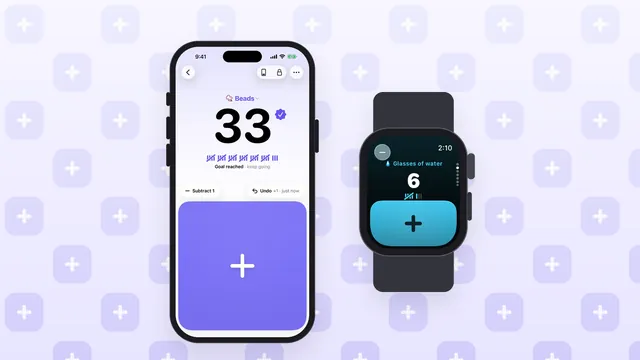
- Apple Watch: the rectangular complication has a + key on your watch face. See how to use a tally counter on Apple Watch.
Tips for widget counting
- Match the widget to the habit. One small widget for water, the large Counters widget for a day of birdwatching or a stock count.
- Use a step for sets. Set push-ups to add 5 a tap and one press of the widget key is a whole set. Ideas in how to count reps.
- Left-handed? Turn on Left-Handed in Plusmark's Settings to mirror the + keys, the medium widget and the Live Activity.
- Give each counter a clear name and colour. When six counters sit side by side, a glance should be enough to find the right key.
Questions?
The Plusmark FAQ covers widgets, the Live Activity, controls and Siri, and Apple's widget guide has more on editing and moving widgets on iPhone.
Count it with Plusmark
Plusmark is the tally counter for iPhone, iPad, iPhone Duo and Apple Watch. Name a counter, tap the big + pad, and every tap is saved with its time, with goals, widgets and Siri.